Using your browser’s Developer Tools for scraping
Here is a general guide on how to use your browser’s Developer Tools to ease the scraping process. Today almost all browsers come with built-in Developer Tools, and although we will use Firefox in this guide, the concepts are applicable to any other browser.
In this guide we’ll introduce the basic tools to use from a browser’s Developer Tools by scraping quotes.toscrape.com.
Caveats with inspecting the live browser DOM
Since Developer Tools operate on a live browser DOM, what you’ll actually see
when inspecting the page source is not the original HTML, but a modified one
after applying some browser clean up and executing JavaScript code. Firefox, in
particular, is known for adding <tbody> elements to tables. Scrapy, on the
other hand, does not modify the original page HTML, so you won’t be able to
extract any data if you use <tbody> in your XPath expressions.
Therefore, you should keep in mind the following things:
Disable JavaScript while inspecting the DOM looking for XPaths to be used in Scrapy (in the Developer Tools settings click Disable JavaScript)
Never use full XPath paths, use relative and clever ones based on attributes (such as
id,class,width, etc) or any identifying features likecontains(@href, 'image').Never include
<tbody>elements in your XPath expressions unless you really know what you’re doing
Inspecting a website
By far the most handy feature of the Developer Tools is the Inspector feature, which allows you to inspect the underlying HTML code of any webpage. To demonstrate the Inspector, let’s look at the quotes.toscrape.com site.
On the site we have a total of ten quotes from various authors with specific tags, as well as the Top Ten Tags. Let’s say we want to extract all the quotes on this page, without any meta-information about authors, tags, etc.
Instead of viewing the whole source code for the page, we can simply
right-click on a quote and select Inspect Element (Q), which opens up the
Inspector. In it you should see something like this:
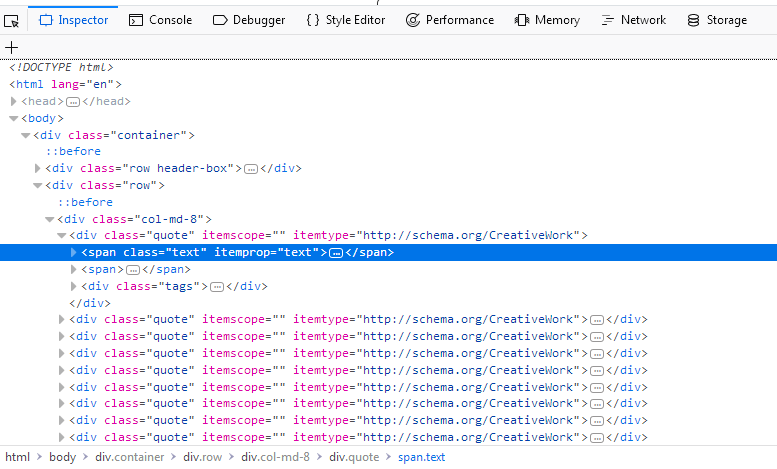
The interesting part for us is this:
<div class="quote" itemscope="" itemtype="http://schema.org/CreativeWork">
  <span class="text" itemprop="text">(...)</span>
  <span>(...)</span>
  <div class="tags">(...)</div>
</div>
If you hover over the first div directly above the span tag highlighted
in the screenshot, you’ll see that the corresponding section of the webpage gets
highlighted as well. So now we have a section, but we can’t find our quote text
anywhere.
The advantage of the Inspector is that it automatically expands and collapses
sections and tags of a webpage, which greatly improves readability. You can
expand and collapse a tag by clicking on the arrow in front of it or by
double-clicking directly on the tag. If we expand the span tag with the
class="text" attribute, we see the quote text we clicked on. The
Inspector lets you copy XPaths to selected elements. Let’s try it out.
First open the Scrapy shell at https://quotes.toscrape.com/ in a terminal:
$ scrapy shell "https://quotes.toscrape.com/"
Then, back to your web browser, right-click on the span tag, select
Copy > XPath and paste it in the Scrapy shell like so:
>>> response.xpath("/html/body/div/div[2]/div[1]/div[1]/span[1]/text()").getall()
['“The world as we have created it is a process of our thinking. It cannot be changed without changing our thinking.”']
Adding text() at the end, we are able to extract the first quote with this
basic selector. But this XPath is not really that clever. All it does is go
down a desired path in the source code starting from html. So let’s see if
we can refine our XPath a bit:
If we check the Inspector again we’ll see that directly beneath our expanded
div tag we have nine identical div tags, each with the same attributes
as our first. If we expand any of them, we’ll see the same structure as with
our first quote: two span tags and one div tag. We can expand each
span tag with the class="text" inside our div tags and see each
quote:
<div class="quote" itemscope="" itemtype="http://schema.org/CreativeWork">
  <span class="text" itemprop="text">
    “The world as we have created it is a process of our thinking. It cannot be changed without changing our thinking.”
  </span>
  <span>(...)</span>
  <div class="tags">(...)</div>
</div>
With this knowledge we can refine our XPath: Instead of a path to follow,
we’ll simply select all span tags with the class="text" by using
the has-class-extension:
>>> response.xpath('//span[has-class("text")]/text()').getall()
['“The world as we have created it is a process of our thinking. It cannot be changed without changing our thinking.”',
'“It is our choices, Harry, that show what we truly are, far more than our abilities.”',
'“There are only two ways to live your life. One is as though nothing is a miracle. The other is as though everything is a miracle.”',
...]
And with one simple, cleverer XPath we are able to extract all quotes from
the page. We could have constructed a loop over our first XPath to increase
the number of the last div, but this would have been unnecessarily
complex and by simply constructing an XPath with has-class("text")
we were able to extract all quotes in one line.
The Inspector has a lot of other helpful features, such as searching in the source code or directly scrolling to an element you selected. Let’s demonstrate a use case:
Say you want to find the Next button on the page. Type Next into the
search bar on the top-right of the Inspector. You should get two results. The
first is a li tag with the class="next", the second the text of an
a tag. Right-click on the a tag and select Scroll into View. If you
hover over the tag, you’ll see the button highlighted. From here we could
easily create a Link Extractor to follow the
pagination. On a simple site such as this, there may not be the need to find an
element visually but the Scroll into View function can be quite useful on
complex sites.
Note that the search bar can also be used to search for and test CSS
selectors. For example, you could search for span.text to find
all quote texts. Instead of a full text search, this searches for
exactly the span tag with the class="text" in the page.
The Network tool
While scraping you may come across dynamic webpages where some parts of the page are loaded dynamically through multiple requests. While this can be quite tricky, the Network tool in the Developer Tools greatly facilitates this task. To demonstrate the Network tool, let’s take a look at the page quotes.toscrape.com/scroll.
The page is quite similar to the basic quotes.toscrape.com page, but instead
of the above-mentioned Next button, the page automatically loads new quotes
when you scroll to the bottom. We could go ahead and try out different XPaths
directly, but instead we’ll check another quite useful command from the Scrapy
shell:
$ scrapy shell "quotes.toscrape.com/scroll"
(...)
>>> view(response)
A browser window should open with the webpage but with one
crucial difference: Instead of the quotes we just see a greenish
bar with the word Loading....
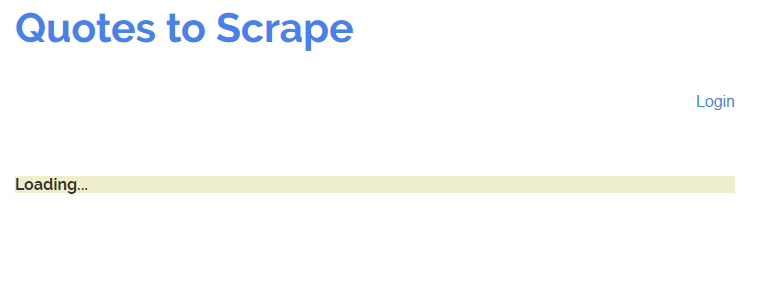
The view(response) command lets us view the response our shell or later our
spider receives from the server. Here we see that some basic template is loaded
which includes the title, the login button and the footer, but the quotes are
missing. This tells us that the quotes are being loaded from a different
request than quotes.toscrape.com/scroll.
If you click on the Network tab, you will probably only see
two entries. The first thing we do is enable persistent logs by
clicking on Persist Logs. If this option is disabled, the
log is automatically cleared each time you navigate to a different
page. Enabling this option is a good default, since it gives us
control on when to clear the logs.
If we reload the page now, you’ll see the log get populated with six new requests.
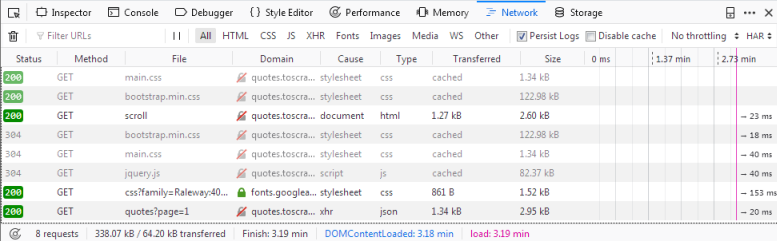
Here we see every request that has been made when reloading the page and can inspect each request and its response. So let’s find out where our quotes are coming from:
First click on the request with the name scroll. On the right you can now
inspect the request. In Headers you’ll find details about the request
headers, such as the URL, the method, the IP address, and so on. We’ll ignore
the other tabs and click directly on Response.
What you should see in the Preview pane is the rendered HTML code, exactly
what we saw when we called view(response) in the shell. Accordingly, the
type of the request in the log is html. The other requests have types
like css or js, but what interests us is the one request called
quotes?page=1 with the type json.
If we click on this request, we see that the request URL is
https://quotes.toscrape.com/api/quotes?page=1 and the response is a JSON
object that contains our quotes. We can also right-click on the request and
open Open in new tab to get a better overview.
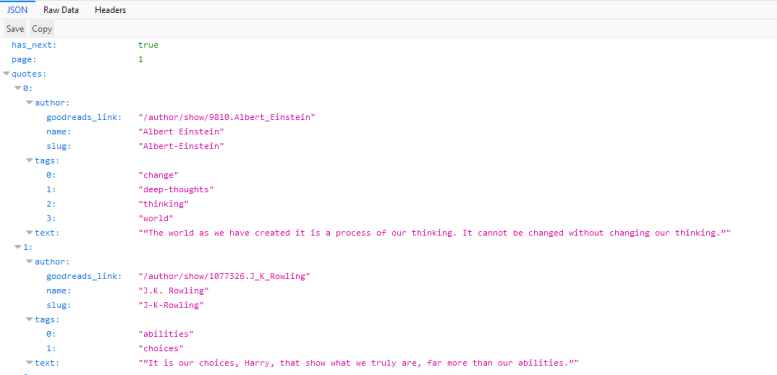
With this response we can now easily parse the JSON object and also request each page to get every quote on the site:
import scrapy


class QuoteSpider(scrapy.Spider):
    name = "quote"
    allowed_domains = ["quotes.toscrape.com"]
    page = 1
    start_urls = ["https://quotes.toscrape.com/api/quotes?page=1"]

    def parse(self, response):
        data = response.json()
        for quote in data["quotes"]:
            yield {"quote": quote["text"]}
        if data["has_next"]:
            self.page += 1
            url = f"https://quotes.toscrape.com/api/quotes?page={self.page}"
            yield scrapy.Request(url=url, callback=self.parse)
This spider starts at the first page of the quotes-API. With each response, we
parse the response.text and assign it to data. This lets us operate on
the JSON object like on a Python dictionary. We iterate through the quotes
and print out the quote["text"]. If the handy has_next element is
true (try loading quotes.toscrape.com/api/quotes?page=10 in your browser
or a page number greater than 10), we increment the page attribute and
yield a new request, inserting the incremented page number into our
url.
In more complex websites, it could be difficult to easily reproduce the
requests, as we could need to add headers or cookies to make it work.
In those cases you can export the requests in cURL
format, by right-clicking on each of them in the network tool and using the
from_curl() method to generate an equivalent
request:
from scrapy import Request

request = Request.from_curl(
    "curl 'https://quotes.toscrape.com/api/quotes?page=1' -H 'User-Agent: Mozil"
    "la/5.0 (X11; Linux x86_64; rv:67.0) Gecko/20100101 Firefox/67.0' -H 'Acce"
    "pt: */*' -H 'Accept-Language: ca,en-US;q=0.7,en;q=0.3' --compressed -H 'X"
    "-Requested-With: XMLHttpRequest' -H 'Proxy-Authorization: Basic QFRLLTAzM"
    "zEwZTAxLTk5MWUtNDFiNC1iZWRmLTJjNGI4M2ZiNDBmNDpAVEstMDMzMTBlMDEtOTkxZS00MW"
    "I0LWJlZGYtMmM0YjgzZmI0MGY0' -H 'Connection: keep-alive' -H 'Referer: http"
    "://quotes.toscrape.com/scroll' -H 'Cache-Control: max-age=0'"
)
Alternatively, if you want to know the arguments needed to recreate that
request you can use the curl_to_request_kwargs()
function to get a dictionary with the equivalent arguments:
- scrapy.utils.curl.curl_to_request_kwargs(curl_command: str, ignore_unknown_options: bool = True) dict[str, Any][source]
Convert a cURL command syntax to Request kwargs.
Note that to translate a cURL command into a Scrapy request, you may use curl2scrapy.
As you can see, with a few inspections in the Network tool we were able to easily replicate the dynamic requests of the scrolling functionality of the page. Crawling dynamic pages can be quite daunting and pages can be very complex, but it (mostly) boils down to identifying the correct request and replicating it in your spider.